Golden Record MDM
This page describes how to deploy and operate the MDM module in its default MATCH_AND_LINK mode, in which source records are linked to Golden Records. It applies to both Golden Record strategies, which share the same module configuration, search expansion, and partitioning behaviour. They differ in how matches are established: MDM in EID mode matches on the eidSystems configuration in the MDM rules and requires no human review, while Probabilistic MDM matches on configured matching rules and uses the MDM UI for data steward review of possible matches.
Getting Started
If you'd like to jump right in and start trying things out, a quick walkthrough is available in our Smile CDR MDM Quickstart Guide. Otherwise, read on to understand in detail how MDM is configured within Smile CDR.
Additional details about Smile CDR MDM can be found in the HAPI FHIR MDM documentation and cover the following topics:
HAPI FHIR MDM Table of Contents
- Overview
- Matching Rules
- Operations
- EID management configuration options
- Technical Details
- Search Expansion
- Customization
Enabling and Configuring MDM within Smile CDR
To enable MDM on a Smile CDR FHIR repository, several modules are used together. The following diagram shows how these different modules relate to each other.
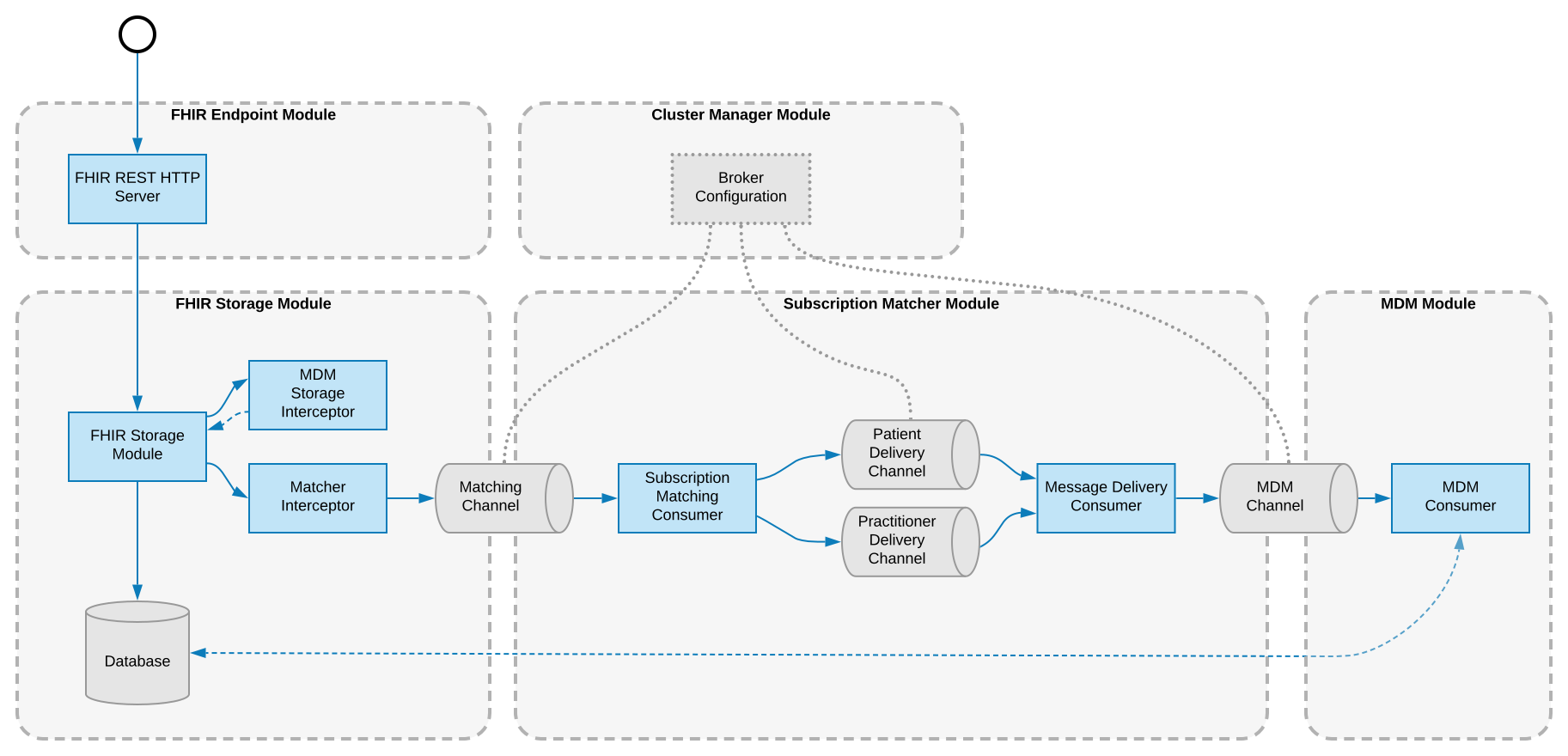
This diagram shows the following modules:
Cluster Manager Module
The Cluster Manager Module contains the configuration used to connect to the selected message broker.
See Message Broker for information on how to select and configure a message broker. By default an embedded Apache ActiveMQ server is used; this is acceptable for testing, but an external broker should be used in production.
FHIR Storage Module
MDM uses a Subscription Module and the configured message broker to process incoming resources asynchronously.
MDM uses the FHIR Storage Module specified by the Subscription Matching Module it depends on. MDM support is configured on the FHIR Storage module via the mdm.enabled and subscription.message.enabled properties, requiring both to be enabled.
Subscription Matching Module
A Subscription Matching module should be created with a module dependency on the chosen FHIR Storage module. When MDM starts up, it will create a subscription for each MDM type. These subscriptions have a "message" channel type and submit the incoming MDM resources on the "mdm" channel.
MDM Module
The MDM Module subscribes to the "mdm" channel and processes the incoming MDM resources, creating MDM links according to the rules configured in this module. See HAPI FHIR MDM and MDM Rule Definiton for details on how the MDM rules are configured.
The MDM module might use the Message Broker configured in the Cluster Manager Module extensively, especially if operations like $mdm-submit are used. Because many FHIR resources could potentially be pushed to the "mdm" channel of the message broker, a reliable external broker is recommended.
MDM Search Expansion
Users of MDM often want to query across all the resources associated with all linked patients in a single query. This is called MDM Search Expansion. For example, a user may want all the Observations of a given Patient plus the Observations of all matched patients. The following query shows how to use the :mdm parameter modifier to expand a search across all linked patients.
GET [base]/Observation?patient:mdm=Patient/123
The above query will return all Observations for Patient/123 and all Observations for all linked patients.
MDM Expansion is also supported on the $everything operation via the _mdm query parameter. Below is an example:
GET [base]/Patient/123/$everything?_mdm=true
In order to support expanded reference searches using the :mdm search parameter qualifier, you must enable the mdm.search_expansion.enabled property.
If expanded reference searches are enabled and the user has the FHIR_AUTO_MDM permission, search parameters in the FHIR Patient Compartment will be expanded even when the :mdm qualifier is not explicitly provided.
This will also automatically convert any $everything operation invocations to use mdm expansion. Bulk Export operations also support automatic MDM expansion. When a user with the FHIR_AUTO_MDM permission initiates a bulk export, the export will automatically include linked MDM records if auto-expansion is enabled.
Troubleshooting
The MDM Troubleshooting Log can be helpful in diagnosing issues relating to MDM processing.
MDM User Interface (MDM UI)
See MDM UI for more information about this feature.
MDM Scenarios
Smile MDM is designed to be flexible enough to work in different kinds of enterprise environments. Below are some example MDM scenarios.
Create-only EID mode and multiple EID mode
Some enterprises have a strict intake process that identifies all patients with a uniquely assigned Enterprise Identifier (EID) and all interactions identify that Patient via their EID. This is the MDM in EID mode strategy.

Smile MDM has configuration options to support this scenario. By default, the MDM module rejects updates that modify a resource's EID; this behaviour is controlled by the Prevent modification of External EIDs property. Similarly, by default a resource may carry only one EID at a time; this is controlled by the Prevent multiple EIDs from existing simultaneously on a target resource property. Background on these settings is available in the HAPI FHIR EID documentation.
See Using Enterprise Identifiers in MDM Rule Definition section for more details about using EIDs and how these options change the way the incoming resources are processed by the MDM Module.
Rule-based matching
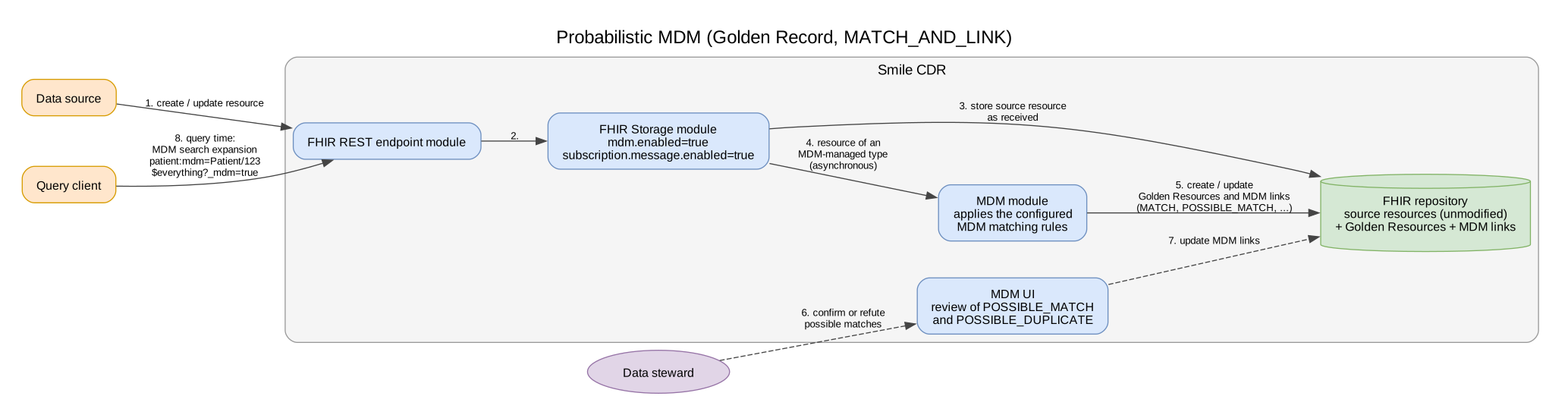
Other enterprises, however, need to consolidate records from different systems where it is not known beforehand which records refer to the golden record. This is the Probabilistic MDM strategy. To support this scenario, Smile MDM provides a rich set of MDM Matching Rules to algorithmically detect when two Patient records refer to the same person. Organizations can also deploy custom matching algorithms when the built-in algorithms do not meet their requirements.
Based on the rule configuration, some patients will be identified as exact matches and automatically linked. Others may be flagged as possible matches or may identify that two Golden Records in the system may be duplicates. Smile CDR provides an MDM User Interface to manually resolve these possible matches and duplicates. The MDM Rule Definiton section provides details on how to create MDM rules for resource matching. For a worked example of authoring a rules file, see the Advanced Rule Authoring tutorial.
Blocking MDM Matching
MDM can be configured to block certain resources from MDM matching entirely using a set of json rules.
For more information on block list rules, see the hapi fhir customizations section
Additional examples can be found here.
Resources Omitted From MDM Matching
A resource can be omitted from MDM matching for two reasons:
- It is blocked by block list rules.
- It matches too many candidates. If a candidate search returns as many or more candidates than the configured maximum threshold, MDM cannot meaningfully narrow the resource down to a match, so matching is abandoned for that resource.
In both cases the source resource is tagged so that omitted resources can be found afterwards.
The tag uses the system http://hapifhir.io/fhir/NamingSystem/mdm-unmatched, with the following code values:
| Code | Meaning |
|---|---|
blocked | The resource was excluded from matching by block list rules. |
too-many-candidates | The candidate search reached the configured maximum threshold, so matching was abandoned. |
To find resources that have been omitted from MDM matching, search for the tag codes. A tag search must always specify a code, so list both codes to find every omitted resource:
http://localhost:8000/Patient
To find only one of the two cases, search for that code alone:
http://localhost:8000/Patient
VERSIONED or NON_VERSIONED (the default).
If FHIR Storage Module is set to INLINE tag storage, where tags are held in the resource body rather than indexed separately,
tag searching will not work as intended.
The two cases differ in one important respect:
A blocked resource still receives a Golden Record, so that later resources may match to it. A too-many-candidates resource does not: creating one would add a further candidate to every subsequent search, pushing later resources over the threshold as well.
Both thresholds are configured on the MDM module (see MDM configuration):
- Warn threshold for search candidates — when a candidate search reaches this count, a warning is logged, but matching continues as normal. Default is set to 50.
- Maximum allowed search candidates — when a candidate search reaches this count, the resource is tagged and omitted from matching. Default is set to 10,000.
The warn threshold should be set strictly below the maximum threshold. If it is not, the MDM module reports a configuration warning.
If a warn threshold is set at or above the max, no warnings are ever logged, since the max value is evaluated first.
If you are seeing warning logs or seeing many too-many-candidates resources, it's usually a sign the MDM matching rules are not tight enough.
Updating the candidate search parameters so that fewer candidates are returned can resolve these problems.
Once the rules are adjusted, re-submitting the resource to MDM will re-evaluate it.
Analytics
Smile MDM can also be used to support business analytics, automatically linking batch data from different systems. In this scenario, the FHIR repository might be reset before each load, or it may link to external records maintained in a data warehouse.
Multithreaded Performance Considerations
By default, MDM runs on a single background thread, which is the only configuration that guarantees duplicate-free matching. Raising the MDM Consumer Thread Count
(consumer_count) increases ingestion throughput at the cost of the risks described in Concurrency Risks of Multiple Consumers below; read that section before changing it.
If your MDM rules are defined by an EID and your message broker is Kafka, you can run MDM on multiple threads. To enable multiple consumers for MDM, perform the following steps:
- Configure the partition count for the
mdmkafka topic to at least the desired number of threads for concurrent MDM processing. - In the MDM module config, set the consumer count to the same value as the partition count. e.g, if your topic has 3 partitions, set the consumer count to 3.
- (Optional) Provide a kafka partition key generator script using MDM Partition Key Script Text or MDM Partition Key Script File properties.
- Restart the MDM module.
On boot, each consumer will consume from a single partition. Note that this only works if you define:
- an
eidSystemoreidSystemsin your MDM rules, in which case the value of the resource's EID becomes the partition key. Where several EID systems are configured for a resource type, that list is a priority order: the EID belonging to the first listed system is used, and if the resource carries no EID for that system, the next listed system is tried, and so on until a value is found. The key therefore does not depend on the order in which identifiers appear in the resource, or - a
MDM Partition Key Scriptis defined as per option 3. above, in which case the script must provide the partition key for each resource.
Concurrency Risks of Multiple Consumers
- Setting
consumer_countto 1 is always safe. - Setting
consumer_countgreater than 1 is safe when themdmtopic is partitioned by a key shared by every resource describing the same person. That holds when:- a single EID system is configured and every resource MDM processes carries it;
- several EID systems are configured and every source populates the highest-priority one; or
- a partition key script returns the same key for every resource describing the same person.
consumer_count above 1 can create duplicate Golden Resources. MDM does not currently take a database lock over the candidate set while matching, so leave consumer_count at its default of 1 unless the trade-offs below are acceptable.
The rest of this section explains why, for configurations that fall outside these cases.
The race condition. Each consumer thread independently searches for candidate Golden Resources, evaluates the matching rules, and then creates or links to a Golden Resource. Nothing serializes those steps across threads.
For example, when two new Patient resources that match each other are processed at the same time, both threads search before either has written its result, neither finds a Golden Resource, and each creates one. The result is two Golden Resources for the same patient. Slower matching rules, larger candidate sets, and higher ingestion rates widen the window.
Partitioning the Kafka topic by EID (or by a partition key script) is what keeps this from happening in practice: it routes all resources that share a key to the same partition, and therefore to the same consumer, so they are matched sequentially. The risk remains for any resources that match the same person but do not share a partition key:
- resources that carry no EID at all, or that match probabilistically on demographics rather than on the key;
- when several EID systems are configured for a resource type, or resources carry EIDs from different systems. The partition key is the EID of the highest-priority configured system the resource carries, so a record holding only the second system's EID is keyed differently from one holding the first system's EID, even though the two match under the OR semantics described in EID Matching.
Because of this, the MDM module raises a configuration warning when consumer_count is greater than 1 and no EID system is configured at all. The warning is not a substitute for the analysis above: a configured EID system does not by itself make multiple consumers safe.
Trade-offs.
| Configuration | Throughput | Duplicate Golden Resources |
|---|---|---|
consumer_count = 1 (default) | Single-threaded matching | None from concurrency |
| > 1, one EID system, present on every resource | Scales with the partition count | None from concurrency, since all resources for a person share a key |
| > 1, one EID system, absent from some resources | Scales with the partition count | Possible for the resources that carry no EID |
| > 1, several EID systems configured | Scales with the partition count | Possible when matching resources carry EIDs from different systems, since those are keyed differently; avoided if every source populates the highest-priority EID |
| > 1, partition key script | Scales with the partition count | Depends on the script; safe only if it returns the same key for every resource describing the same person |
| > 1, not partitioned by key | Scales with the partition count | Likely under concurrent ingestion of matching resources |
Cleaning up duplicates. Duplicates created this way are ordinary duplicate Golden Resources and are resolved with the standard tools:
- Review candidates in the MDM UI, which surfaces pairs flagged as POSSIBLE_DUPLICATE.
- Merge a confirmed duplicate pair with
$mdm-merge-golden-resources, which relinks the source resources onto the surviving Golden Resource and applies the configured survivorship rules. - List the pairs the system has already flagged with
$mdm-duplicate-golden-resources. - Duplicates created concurrently are not always flagged automatically, since each Golden Resource can look like a valid match for its own sources. They are flagged when a later resource carries EIDs that resolve to both Golden Resources, which links them as a POSSIBLE_MATCH and marks the pair as potential duplicates, but nothing guarantees such a resource arrives. Plan for periodic reconciliation rather than relying on the review queue alone.
Recommended configuration. Leave consumer_count at 1 unless ingestion throughput is a demonstrated bottleneck. If you do raise it, partition the mdm topic by a key that is present on every resource MDM processes and identical for every resource describing the same person — with several EID systems configured, that means every source system populating the same, highest-priority EID — keep consumer_count equal to the partition count, and budget for periodic duplicate reconciliation.
MDM and Partitioning
- If both MDM and multitenancy are enabled, the MDM_SEARCH_ALL_PARTITION_FOR_MATCH property configures whether resources match against resources from all partitions or only against resources in the same partition.
- All golden resources will be stored on the same partition as the resource that triggered the creation of the golden resource unless a partition is designated as the golden resource partition using the config MDM_GOLDEN_RESOURCE_PARTITION, in which case all golden resources will be stored on said partition.
- The MDM Metrics endpoint is partition-aware. When
MDM_SEARCH_ALL_PARTITION_FOR_MATCHistrue, metrics aggregate across all partitions. When it isfalse, callers can supply an explicitpartitionIdsquery parameter to scope metrics to a subset of partitions; if no partition ids are supplied, metrics are computed against the default single-partition context.
Fully Removing MDM
To fully remove MDM functionality from the system, first turn off the MDM module. You will then need to manually set the status of all subscriptions to "Off". If you no longer plan on using MDM, you can also run the $mdm-clear operation to delete all Golden Resources and MDM-Links from the system.